A good photo does not always need a complete makeover. Sometimes it needs a distracting object removed, a blurry subject sharpened, a dark area brightened, or a background adjusted to better fit the image.
That is where AI photo editing tools have become genuinely useful. Instead of manually selecting every object or spending hours learning complex editing techniques, modern AI-powered editors can identify subjects, backgrounds, faces, lighting, and other parts of an image to speed up the process.
The best AI photo editing tools in 2026 are not necessarily the ones with the most AI features. The right choice depends on what you actually need to do. A professional photographer may need precise masking and non-destructive editing, while a small business owner may simply want to remove a background and create a product image quickly.
This guide explains how AI photo editing works, compares some of the most useful tools, and helps you choose the right option for your workflow.
What Is AI Photo Editing?
AI photo editing uses machine learning and generative AI to analyze an image and assist with editing tasks.
Traditional photo editing often requires the user to manually select areas, adjust sliders, clone pixels, or paint masks. AI can automate part of that work by recognizing what is inside the image.
Depending on the tool, AI can help you:
- Remove unwanted objects
- Select people, skies, backgrounds, or other subjects
- Replace or generate parts of an image
- Expand an image beyond its original borders
- Reduce image noise
- Sharpen soft photos
- Increase image resolution
- Improve lighting and color
- Move or resize objects
- Retouch portraits
- Replace backgrounds
The important distinction is that AI editing is not always the same as generating an entirely new image.
For example, an AI denoise tool may analyze a noisy photograph and attempt to reduce unwanted visual noise while preserving useful detail. A generative fill tool, on the other hand, may create new pixels to replace an object you removed.
Those are very different tasks, and the best tool for one may not be the best tool for the other.
How AI Photo Editing Tools Work
Most AI editing tools combine one or more types of image analysis.
Object and subject recognition
The software identifies recognizable elements in a photograph, such as:
- A person
- The sky
- Clothing
- A product
- The background
- Facial features
This makes it easier to create selections or masks without manually tracing every edge.
For example, instead of carefully selecting a person with a brush, an AI editor may identify the subject automatically and allow you to adjust only the background.
Image enhancement
Enhancement models attempt to improve existing image information.
Common examples include:
- Noise reduction
- Sharpening
- Deblurring
- Upscaling
- Face recovery
- Lighting correction
These tools can be especially useful when a photograph has technical problems caused by low light, motion, or a low-resolution source.
However, AI enhancement should not be confused with magically recovering information that never existed. An AI model may infer plausible detail, and the result can sometimes differ from the original scene.
Generative editing
Generative editing creates new image content based on the surrounding image and, in some cases, a text instruction.
Suppose you remove a large sign from a street photograph. The editor must decide what should appear behind the sign. A generative AI tool can create replacement content that attempts to match the scene.
This is useful, but it also creates a risk: the generated area may look realistic while not representing what was actually present.
That distinction matters for journalism, evidence, historical photography, and other situations where image authenticity is important.
The Best AI Photo Editing Tools 2026
The following tools are useful for different types of users rather than competing in exactly the same category.
| Tool | Best for | Main strength | Potential drawback |
|---|---|---|---|
| Adobe Photoshop | Advanced and professional editing | Generative editing and precise manual control | More complex to learn |
| Adobe Lightroom | Photographers and photo libraries | AI-assisted photo adjustments and organization | Less suited to complex compositing |
| Canva | Beginners, marketers, and social media | Simple AI editing inside a design workflow | Less control for advanced retouching |
| Topaz Photo | Image quality enhancement | Sharpening, denoising, and upscaling | Focused more on enhancement than creative editing |
| Google Photos | Everyday mobile photo editing | Fast AI-assisted edits | Not designed as a full professional editor |
| Luminar Neo | Creative photographers | AI-assisted adjustments and visual effects | Workflow preferences may vary by photographer |
| Pixelcut | Product and ecommerce images | Fast background and product-focused editing | Less suited to complex professional workflows |
1. Adobe Photoshop: Best for Advanced AI Photo Editing
Adobe Photoshop remains one of the strongest choices for users who want AI assistance without giving up detailed manual control.
Its AI features can assist with tasks such as:
- Adding or replacing objects
- Removing distractions
- Expanding an image beyond its original canvas
- Generating or replacing backgrounds
- Upscaling images
- Matching generated objects more closely to the lighting and appearance of a scene
The major advantage of Photoshop is flexibility.
Imagine a real estate photographer has a photo with an unattractive object near the edge of a room. A simple AI removal may solve the problem. But if the generated result looks wrong, Photoshop also gives the editor traditional tools, layers, masks, and other controls to refine the image.
That combination makes it particularly useful when a one-click AI result is not enough.
The downside is that Photoshop can feel overwhelming for beginners. If your main goal is simply removing a background or creating a social media image, a simpler tool may be faster.
Adobe’s current Photoshop documentation lists generative tools including Generative Fill, Generative Expand, Generate Background, and Generative Upscale, while also offering different processing and control options for some AI-assisted removal workflows.
2. Adobe Lightroom: Best for AI-Assisted Photography Workflows
Adobe Lightroom is particularly useful for photographers who edit many images rather than one image at a time.
Its AI-assisted tools can help with tasks such as selecting subjects and removing distractions. Its Generative Remove feature is designed to remove unwanted objects and generate replacement content that blends with the surrounding area.
Consider a travel photographer editing 300 photos from a trip.
The goal is usually not to dramatically redesign every image. Instead, the photographer may want to:
- Correct exposure.
- Adjust color.
- Improve a subject.
- Remove occasional distractions.
- Apply consistent edits across similar images.
That is where a photography-focused workflow can be more useful than opening every image in a full compositing application.
For smaller problems such as blemishes or sensor spots, traditional healing and cloning tools can sometimes produce more predictable results than generative editing.
Adobe also notes that generative removal is useful for larger or more complex distractions and can generate multiple variations for the user to review.
3. Canva: Best for Beginners and Content Creators
Canva is a strong option for people who need to edit images as part of a larger design workflow.
Instead of editing a photo in one application and then moving it into another program to create a social media post, presentation, advertisement, or marketing graphic, Canva combines those tasks.
Its AI-assisted photo tools include options for:
- Adding or changing elements
- Removing unwanted objects
- Extending images
- Adjusting images automatically
- Separating subjects from backgrounds
- Editing different parts of an image
For example, an online store owner could upload a product photo, remove the original background, clean up a distracting object, place the product into a marketing design, and add text without moving between several applications.
That convenience is Canva’s biggest strength.
The trade-off is precision. Advanced retouching and detailed compositing generally benefit from a more specialized editor.
Canva’s current AI photo editing tools include Magic Edit, Magic Eraser, AI image expansion, background editing, and automatic image adjustments, although feature availability can depend on the plan and may change over time.
4. Topaz Photo: Best for Sharpening, Denoising, and Upscaling
Topaz Photo is aimed more directly at image enhancement.
Its AI-powered tools focus on improving technical image quality through capabilities such as:
- Denoising
- Sharpening
- Upscaling
- Face recovery
- Lighting adjustments
- Color balancing
A useful example is wildlife or sports photography.
You may capture an important moment in poor lighting, forcing you to use a higher ISO setting. The resulting image may contain visible noise. An AI denoise tool can attempt to reduce that noise while retaining useful detail.
Similarly, a photograph that is slightly soft may benefit from AI sharpening.
The key word is slightly.
No tool can reliably turn a severely blurred or extremely low-quality image into a perfect high-resolution photograph. AI can produce impressive improvements, but aggressive settings may create artificial textures or details that were not present in the original.
Topaz currently positions Topaz Photo as a dedicated AI image enhancement application with tools for upscaling, denoising, sharpening, lighting, color, and face recovery.
5. Google Photos: Best for Everyday Photo Editing
Google Photos AI editing is designed for people who want quick improvements without learning professional editing software.
Its AI-assisted editing capabilities can include options for moving, resizing, or removing objects and adjusting aspects of an image.
Imagine taking a family photo where someone appears too far from the center of the composition or where a distracting object draws attention away from the subject.
For an everyday user, the goal is usually speed rather than pixel-level control.
Google Photos is useful for that type of editing because it focuses on straightforward interactions.
It is not intended to replace a professional desktop workflow for complex retouching, layered compositing, or large-scale production.
Google describes Magic Editor as a generative AI-assisted tool for editing photos, including moving or resizing objects and applying contextual adjustments. Availability may depend on device, region, account, and product changes, so current access should be checked before choosing it for a specific workflow.
6. Luminar Neo: Best for Creative AI-Assisted Photography
Luminar Neo is aimed at photographers who want a more visual and AI-assisted approach to editing.
It can appeal to users who want help with tasks such as:
- Enhancing skies
- Adjusting portraits
- Improving lighting
- Working with masks and selections
- Creating more stylized photographic results
A landscape photographer, for example, may want to enhance the sky while adjusting the foreground separately. AI-assisted masking can make that process faster than manually creating a detailed selection.
Luminar Neo is worth considering if you enjoy creative photo editing but do not want every workflow to feel as technical as a traditional professional editor.
Before purchasing, check the current feature list, pricing, system requirements, and licensing directly from the developer because these details can change.
7. Pixelcut: Best for Product Photos and Ecommerce
Pixelcut is focused heavily on fast visual content creation, making it useful for product images and online selling.
A small ecommerce business might need to process dozens of product photographs. The workflow could involve:
- Removing the original background.
- Cleaning up distracting objects.
- Creating a consistent new background.
- Resizing the image for different platforms.
- Producing marketing variations.
AI tools can significantly reduce the amount of repetitive manual work involved.
However, businesses should still inspect the final output carefully. Product images should accurately represent the product, especially when color, size, material, or important details affect a customer’s purchasing decision.
How to Choose Between the Best AI Photo Editing Tools 2026
Instead of asking, “Which AI editor is the best?” ask what problem you are trying to solve.
Choose Photoshop if:
- You need advanced control.
- You work with layers and complex edits.
- You want both AI and traditional editing tools.
- You regularly perform compositing or detailed retouching.
Choose Lightroom if:
- You are primarily editing photographs.
- You manage large photo collections.
- You want efficient, repeatable adjustments.
- You need AI-assisted cleanup without a complicated compositing workflow.
Choose Canva if:
- You are a beginner.
- You create social media or marketing content.
- You want editing and graphic design in one place.
- Speed matters more than advanced manual control.
Choose Topaz Photo if:
- Image quality is your main concern.
- You need denoising or sharpening.
- You want to upscale images.
- You are improving existing photographs rather than redesigning them.
Choose Google Photos if:
- You mainly edit photos on a mobile device.
- You want fast, simple improvements.
- You do not need professional editing controls.
Also Read: iOS App eTrueSports
Real-World Examples of AI Photo Editing
Cleaning up a travel photograph
You photograph a historic building, but a sign and several distracting objects appear in the foreground.
An AI removal tool can identify or mask the unwanted objects and generate replacement content based on the surrounding scene.
The important step is checking the result at full size. Architecture, repeating patterns, text, and complex edges can expose AI mistakes.
Improving a low-light event photo
A wedding or event photo may be noisy because it was captured in difficult lighting.
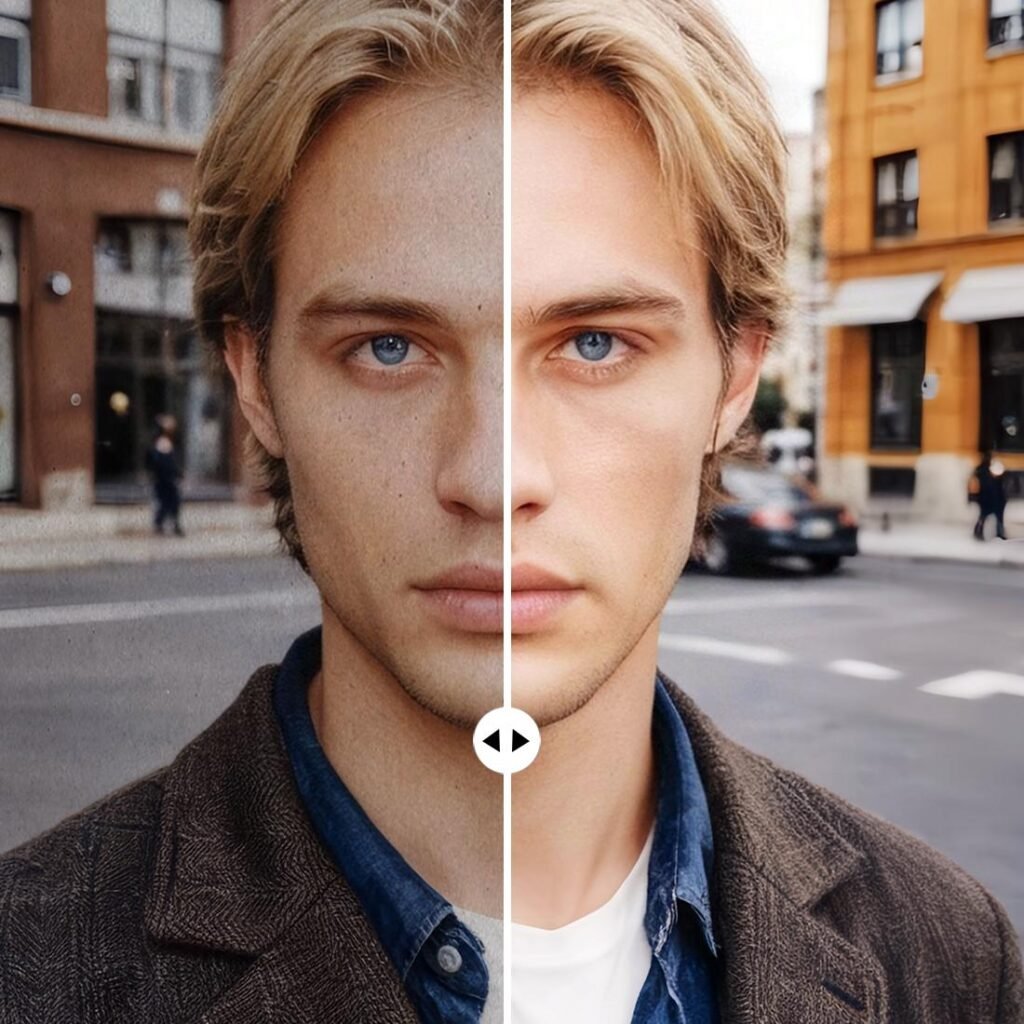
An AI enhancement tool can reduce noise and improve apparent sharpness.
However, the photographer should compare the edited result with the original. Excessive enhancement can make skin, fabric, or fine textures look unnatural.
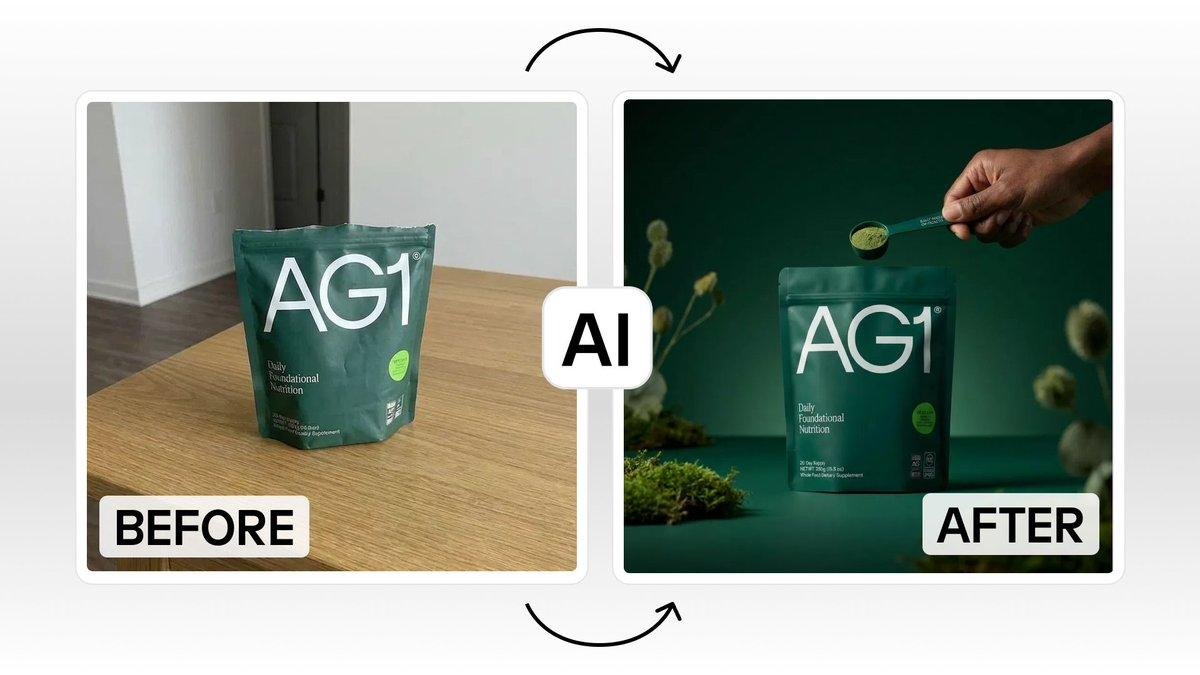
Creating product images for an online store
A seller photographs a product on a desk but wants a clean, consistent background.
AI can isolate the product and remove the original background.
The seller can then place the product against a neutral or branded setting.
This saves time, but the final image should not misrepresent the product’s actual appearance.
Reframing an image for social media
A landscape photograph may not fit a vertical social media format.
An AI expansion tool can generate additional image content around the original edges.
This can preserve the main subject without aggressively cropping the photograph.
The result should still be reviewed for unnatural objects, repeated patterns, or distorted details.
Advantages of AI Photo Editing
AI can provide several practical benefits.
Faster editing
Tasks that previously required careful selections or repetitive manual work can often be completed more quickly.
Lower learning barrier
Beginners can perform useful edits without mastering every professional tool immediately.
Better workflow efficiency
Photographers and content teams can automate parts of repetitive editing while keeping human control over final decisions.
New creative options
Generative tools make it easier to experiment with composition, backgrounds, objects, and image formats.
Limitations and Risks of AI Photo Editing
AI editing is powerful, but it is not automatically accurate.
AI can create incorrect details
An upscaling or generative tool may invent plausible textures or objects. A result can look convincing without being historically or visually accurate.
Object removal can fail
Complex backgrounds, reflections, shadows, text, and repeating patterns can produce visible artifacts.
Privacy matters
Before uploading sensitive or private photographs to a cloud-based AI service, review the provider’s current privacy policy and data handling practices.
Features and pricing change
AI tools change quickly. A feature that is free today may later require a paid plan, credits, or a specific subscription.
Always verify current pricing and feature availability on the provider’s official website before making a purchasing decision.
AI is not a replacement for judgment
The software does not understand your creative intent as reliably as a skilled editor.
A technically clean edit can still have poor composition, unnatural colors, or an unrealistic appearance.
A Simple AI Photo Editing Workflow for Beginners
If you are new to AI photo editing, try this approach:
- Keep the original file.
Always preserve an unedited version. - Fix technical problems first.
Adjust exposure, color, noise, and sharpness before making major creative changes. - Use AI for specific tasks.
Remove one distraction, improve one subject, or expand one edge instead of changing everything at once. - Inspect the image closely.
Zoom in and check faces, hands, text, reflections, and edges. - Compare before and after versions.
Make sure the edit actually improves the photograph. - Use manual tools when AI fails.
AI should speed up your workflow, not force you to accept a bad result.
Common Mistakes to Avoid
Assuming AI always improves image quality
More sharpening, denoising, or upscaling does not automatically mean a better image.
Overprocessing can make photos look artificial.
Using generative editing when simple editing is enough
If a small blemish can be fixed with a healing tool, generating new image content may be unnecessary.
Use the simplest tool that produces a good result.
Ignoring image authenticity
If you are editing news, documentary, scientific, legal, or historical images, generative changes may alter the meaning of the photograph.
Always consider whether the edit changes the factual content of the image.
Forgetting to check the export
A photo may look good in the editor but reveal problems after compression, resizing, or export.
Inspect the final version in the format you actually plan to publish.
Frequently Asked Questions
What are the best AI photo editing tools in 2026?
The best AI photo editing tools in 2026 depend on the task. Photoshop is a strong choice for advanced editing, Lightroom for photography workflows, Canva for beginners and content creation, Topaz Photo for image enhancement, and Google Photos for quick everyday edits.
Can AI edit photos automatically?
Yes. AI can automatically assist with tasks such as selecting subjects, removing backgrounds, adjusting lighting, reducing noise, and identifying unwanted objects. The results should still be reviewed before publishing.
What is the best AI tool for removing objects from photos?
Photoshop and Lightroom offer AI-assisted object removal, while Canva and Google Photos also provide simpler tools for removing or modifying parts of an image. The best choice depends on the complexity of the edit and the level of control you need.
Can AI make a blurry photo clear?
AI can improve some soft or blurry images, but it cannot reliably recover every detail from a severely blurred photograph. Some tools may infer or generate plausible detail rather than restoring the exact original information.
Are AI photo editing tools suitable for professional photographers?
Yes, particularly when used as part of a larger workflow. AI can speed up repetitive tasks, but professional photographers often still rely on manual adjustments and careful quality control.
Is AI photo editing safe for private images?
It depends on the tool and how it processes uploaded files. Before uploading sensitive photographs, review the provider’s current privacy policy, storage practices, and terms of use.
Do AI photo editors change the original image?
Many professional editors support non-destructive workflows, meaning edits can be adjusted or removed without permanently changing the original file. Always confirm how a specific application handles edits and keep a backup of important originals.
Conclusion
The best AI photo editing tools in 2026 are best understood as assistants rather than magic buttons.
Photoshop offers deep creative control. Lightroom is well suited to photography workflows. Canva makes AI editing accessible to beginners and marketers. Topaz Photo focuses on improving image quality, while simpler tools such as Google Photos can handle fast everyday edits.
The right choice depends on the problem in front of you.
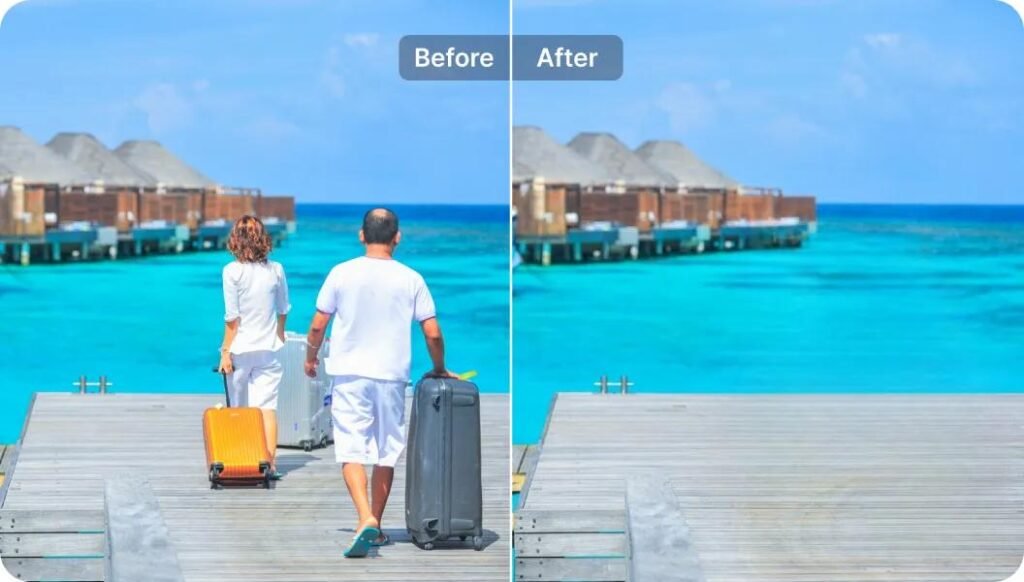
If you need to remove a tourist from a travel photo, an AI removal tool may save significant time. If you are rescuing a noisy low-light image, a dedicated enhancement tool may be more useful. If you are creating dozens of product images, a background-focused AI workflow may be the better investment.
The most effective approach is simple: let AI handle repetitive or technically difficult tasks, but keep human judgment in control of the final image.