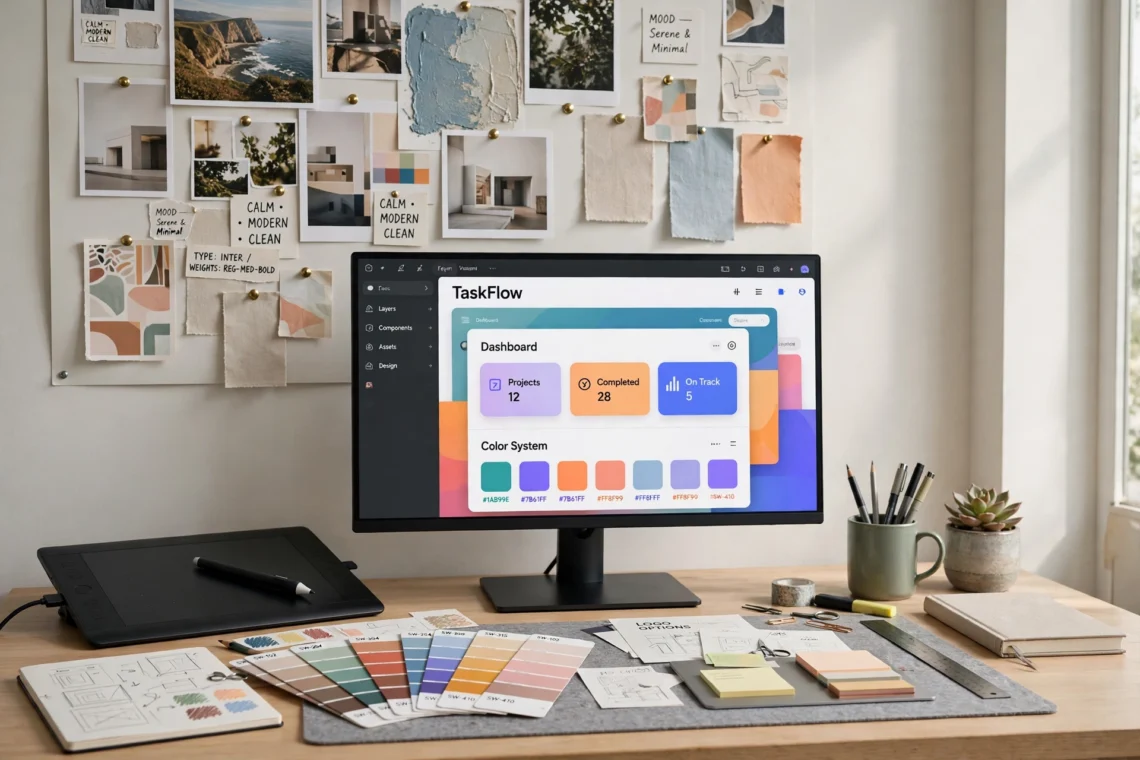
A designer’s week is a long list of small jobs that never quite ends. There is the brief to read, the research to gather, the moodboard to build, the first concepts to sketch, the wireframes to lay out, the screens to design, the components to name, the revisions to make after feedback, the assets to export in six sizes, and the files to hand over — and most of it has to happen around the next deadline that is already late. The designing itself is only part of the load; the resizing, renaming, reformatting, and re-exporting around it takes hours that never show up in a timesheet.
AI tools for designers are built to take on that surrounding work. Used well, they turn a rough brief into ten directions to choose from, a sketch into a wireframe, a wireframe into a clickable prototype, a blank artboard into a first concept you can actually react to, and a single design into versions for every platform and screen size. They do not replace the designer. They clear away the repetitive middle steps so more of your time goes to the judgement, the taste, and the craft that make people hire you in the first place.
This guide covers the 11 best AI tools for designers in 2026, organised by the job each one does, followed by a simple way to choose your own stack, a free starter setup that costs nothing, what these tools actually cost when you do pay, and the mistakes that waste money or get designers into trouble with licensing and client work. Every tool here offers a free tier or trial, except where noted, so you can test each one on real projects before paying for anything. Prices and plan names change often, so check the vendor’s own pricing page on the day you decide.
What AI Tools for Designers Actually Do
AI tools for designers are software that uses artificial intelligence to take over a defined task inside a design workflow. A general assistant such as ChatGPT or Claude turns a rough brief into directions, drafts UX copy, and writes handoff notes. An image tool such as Midjourney or Adobe Firefly produces concept art and moodboard imagery. A UI tool such as Figma Make or Google Stitch turns a prompt into screens and prototypes. A vector tool such as Recraft produces editable icons and illustrations. A colour tool such as Khroma builds palettes from your taste. A video tool such as Runway adds motion to a still design.
Designers are adopting them fast. Weekly AI use among designers jumped from 54% in 2025 to 91% in 2026, according to the AI in Design 2026 report from Designer Fund and Foundation Capital, based on a survey of 906 designers across more than 60 countries. The same report found the average designer now uses seven AI tools regularly — a year earlier, it was three. Figma’s State of the Designer 2026 report, built on a survey of 906 designers, found that 72% use generative AI tools and 91% say AI improves their designs.
Across all of these jobs, the best AI tools for designers share one trait: they make the designing more consistent instead of more generic. The useful way to think about them is by job, not by brand. Designing breaks down into a small set of repeating jobs: understanding the brief, researching, exploring concepts, laying out interfaces, making visuals, choosing colour and type, prototyping, getting feedback, and handing over files. There is now at least one capable AI tool for every one of those jobs, and the strongest tools are the ones that fit the way you already design rather than the ones with the longest feature list.
The business model is changing too. AI features are increasingly metered rather than unlimited: Figma, for example, runs its AI features on a credit system, with full seats on the Professional plan receiving 3,000 credits a month, and offers AI copyright protection as an optional contract add-on for larger teams. You can read Figma’s own description of how its AI features, credits, and protections work here: Figma AI. The short version for designers is that the tooling is now part of the workflow, not a side experiment — so it is worth choosing deliberately, with the licensing and export questions settled before client work depends on it.
The Jobs AI Handles Well
- Brainstorming and directions: Turning a brief into ten visual directions, a moodboard into a style, or a blank artboard into concepts worth reacting to.
- First drafts of screens: Getting from a description to a wireframe or a set of UI screens you can edit, instead of starting from an empty frame.
- Concept imagery: Producing moodboard images, campaign visuals, and art direction references in minutes instead of days.
- Repetitive production: Resizing a design for every platform, removing backgrounds, renaming layers, and generating variations.
- Colour and type exploration: Building palettes from a reference image and pairing typefaces without scrolling through hundreds of options.
- Prototyping and handoff: Turning static screens into clickable prototypes and writing the notes developers need to build them.
The Jobs That Still Need You
- The idea itself: No tool knows what the client actually needs, which direction fits the brand, or which angle only you can take. The idea is the job.
- Taste and judgement: AI output looks polished even when it is bland, derivative, or off-brand, so every concept still needs a human decision about what is good enough to show a client.
- Understanding the user: AI tools cannot interview a user, watch someone struggle with a flow, or know which friction matters. Research and testing stay human work.
- Your style: If a tool generates every concept, your work starts to look like everyone else’s. Clients hire a point of view, not a workflow.
- Licensing and client rules: Your client’s contract and the law decide what counts as acceptable AI use. A generated image of a real person, a logo built entirely by AI, or undisclosed AI work can break rules you did not know existed.
- Accountability: When a design ships with a wrong fact, a broken flow, or a licensing problem, the client looks to you, not to the tool. Anything delivered in your name is your responsibility.
11 Best AI Tools for Designers in 2026
The tools below are organised by job, starting with the general assistants almost every designer uses daily, then moving through image generation, UI design, vectors, colour, and motion. Each of these AI tools for designers earns its place by doing one job well, and each entry explains what the tool is best for and how a designer would actually use it.
1. ChatGPT — Best for Briefs, UX Copy and Brainstorming
What it does: ChatGPT is the general-purpose AI assistant most designers reach for first. It turns a brief into directions, drafts UX copy and microcopy, writes design rationale for a client presentation, summarises user research, and answers quick questions, all in one chat window.
How designers use it: Turning a client brief into ten concept directions, writing error messages and button labels in three tones to test which fits, drafting the narrative for a case study, or summarising interview notes into themes. It is the fastest way to get from a blank page to a draft worth editing, and it handles the writing half of design work that designers rarely enjoy.
Worth knowing: There is a free tier with limits, and the Plus plan costs $20 a month. Because it is a general tool, the quality of the output depends heavily on the quality of your prompt — give it the audience, the brand voice, and an example of your own work, and the drafts get noticeably better.
2. Claude — Best for Design Docs, UX Writing and Handoff Notes
What it does: Claude, built by Anthropic, is a general AI assistant with a particular strength in long-form writing and careful, detailed work. It handles design documentation, UX writing at scale, research synthesis, and handoff notes well, and tends to follow detailed instructions closely.
How designers use it: Writing a full design rationale from an outline, drafting a component library’s documentation, turning a pile of research notes into a structured findings document, or writing handoff notes that a developer can actually build from. Designers who write long-form often keep Claude alongside ChatGPT and choose between them by task.
Worth knowing: A free tier is available with limits, and the Pro plan costs $20 a month ($17 a month on annual billing). Its document handling makes it a strong choice when the work starts with something long — your own notes, a research file, a brief — and ends with something careful.
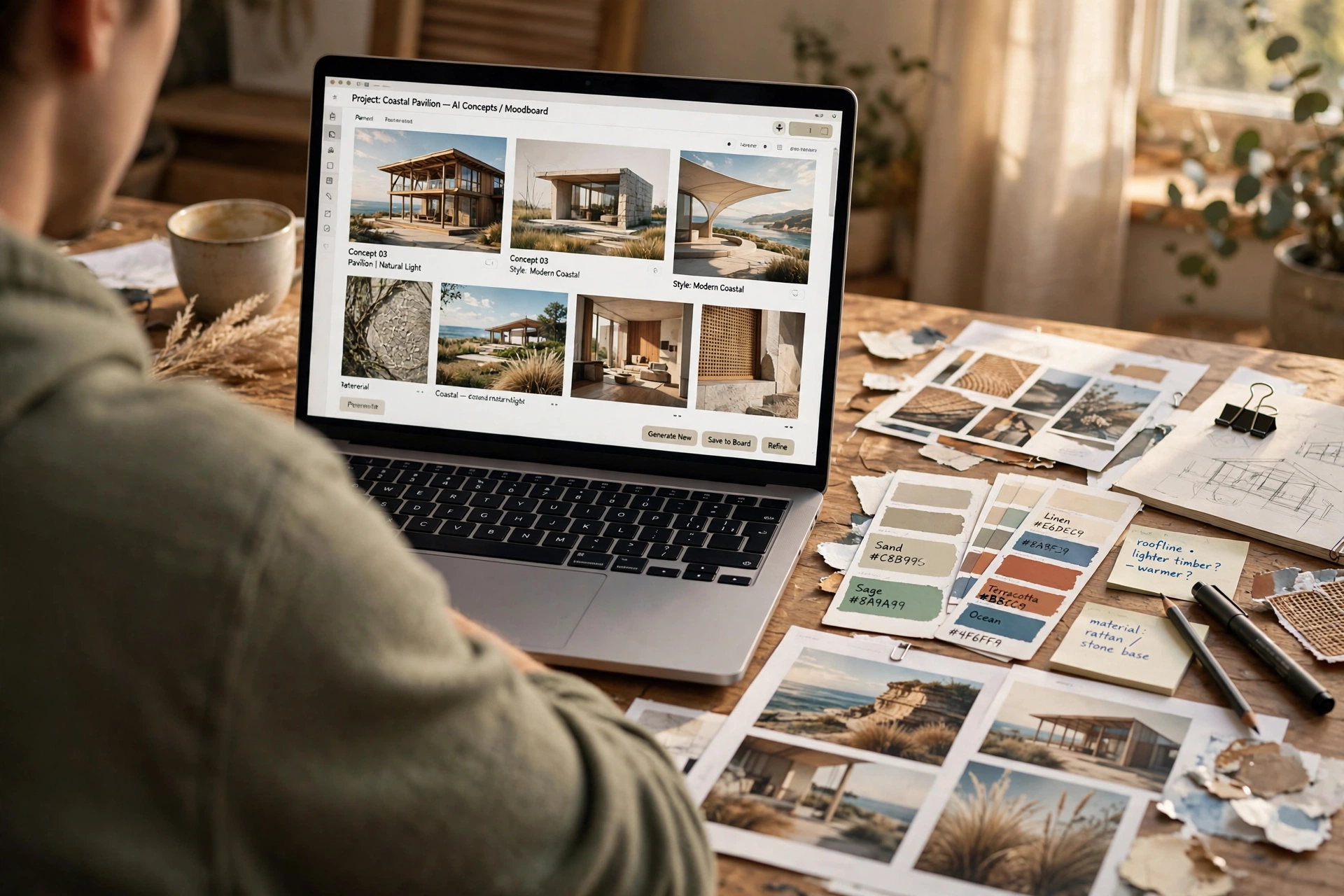
3. Midjourney — Best for Concept Art and Moodboards
What it does: Midjourney generates original images from a text prompt — moodboard imagery, campaign concepts, textures, backgrounds, and art direction references — with a distinctive, polished look that stock photos cannot match.
How designers use it: Creating ten visual directions for a campaign in an afternoon, building a moodboard that actually looks like the brand you are pitching, or exploring a style before committing to a full design. It works best when you treat the prompt as a brief: subject, mood, lighting, palette, and composition, not just a single word.
Worth knowing: There is no free tier, and paid plans start from $10 a month. The output is raster, not vector, so it suits concepts and moodboards rather than final logos. Check the licensing and your client’s rules before using generated imagery in commercial work.
4. Adobe Firefly — Best for Commercially Safe Images
What it does: Adobe Firefly generates images, vectors, and video inside Adobe’s apps, and is trained on licensed content, so everything it produces is designed to be safe for commercial use. It lives inside Photoshop and Illustrator as Generative Fill and Generative Shape Fill, which means the output lands in a file you can keep editing.
How designers use it: Extending a background, removing an object from a product shot, generating a pattern that stays vector, or creating campaign imagery without leaving Photoshop. For designers already in Creative Cloud, it is the lowest-friction way to add AI generation to real client files.
Worth knowing: The Standard plan costs $9.99 a month, and Firefly is also included in Creative Cloud plans. Its real advantage is the licensing position and the editable output: a generated fill inside a layered PSD is far more useful than a flat image from a standalone generator.
5. Figma AI and Figma Make — Best for UI Design and Prototypes
What it does: Figma AI works inside the tool product designers already use: it renames layers, generates UI from a prompt, edits images, searches files visually, and gives design feedback. Figma Make turns a prompt or an existing design into a clickable prototype or a working web app, and can push changes back to a codebase as a pull request.
How designers use it: Generating a first version of a screen from a description, cleaning up a messy file before handoff, turning a set of wireframes into a prototype a stakeholder can click through, or testing three layout directions side by side in an afternoon. It is the tool on this list that sits closest to the finished product.
Worth knowing: Figma AI runs on credits — full seats on the Professional plan get 3,000 credits a month, and other seats get 500 — and Figma Make is free to use while in beta. Professional seats cost from around $15 a month per editor. Because Figma is where the design system lives, its AI features are worth learning even if you only use them for the boring jobs: renaming layers, organising files, and building first drafts.
6. Canva Magic Studio — Best for Marketing Layouts and Social Graphics
What it does: Canva’s Magic Studio generates images, writes text, removes backgrounds, and resizes designs for every platform inside the same canvas. It covers social posts, presentations, flyers, ads, and pitch decks, with templates that keep non-designers and clients on brand.
How designers use it: Turning one campaign design into every social size at once, making a client presentation in an hour, or producing a week’s worth of social graphics from a single brand kit. It is the fastest route from an idea to a finished layout for work that needs to ship today rather than win an award.
Worth knowing: There is a free plan, and the Pro plan costs around $15 a month. Its real value is speed and templates: if you produce marketing visuals every day, the resize and brand-kit features alone can save hours a week. It is not a replacement for Figma or Illustrator on product or identity work.
Also Read: AI Tools for Content Creators: 11 Powerful Ways to Create Better Content in 2026
7. Recraft — Best for Vectors, Icons and Brand Assets
What it does: Recraft generates images and illustrations as native vectors, with strong style control and brand colour matching. It produces icons, illustrations, and ad creatives that export as SVG, so the output stays editable instead of arriving as a flat picture.
How designers use it: Generating a set of icons in one consistent style, building illustrations for a landing page that need to scale, or producing ad variations in brand colours without redrawing everything by hand. It fills the gap other generators leave: editable, scalable artwork rather than raster images.
Worth knowing: There is a free tier with limits, and paid plans start from around $12 a month. Generated geometry still needs inspection — check curves, anchors, and overlaps before the file goes to a client or a developer.
8. Google Stitch — Best Free Prompt-to-UI Tool
What it does: Google Stitch, formerly Galileo AI, turns a text prompt or a sketch into UI designs plus front-end code, free inside Google Labs. It generates screens, themes, and variations, and exports the result for further work.
How designers use it: Exploring interface directions quickly before committing to Figma, turning a rough sketch into presentable screens for a client meeting, or testing a layout idea when the project has no budget for another subscription. It is the best no-cost way to try prompt-to-UI design.
Worth knowing: It is free with generation caps — around 350 standard and 200 experimental generations a month as of April 2026 — and offers little fine-grained control. Use it for exploration and first drafts, then rebuild the winner properly in Figma.
9. Khroma — Best for Colour Palettes
What it does: Khroma learns your colour preferences from the colours you pick and builds personalised palettes, with accessible pairings and hex codes you can copy straight into a design. It is a single-purpose tool that does one job extremely well.
How designers use it: Finding a palette for a new brand when the brief only says “warm but modern”, checking which colour combinations pass accessibility contrast checks, or breaking out of the three palettes you always reach for. It takes minutes and often surfaces combinations you would not have tried.
Worth knowing: It is free in the browser. Pair it with a contrast checker before a palette goes into a client deliverable — a beautiful pairing that fails accessibility is not a finished choice.
10. Runway — Best for Motion and Video
What it does: Runway generates video from text or images, extends clips, removes backgrounds, and turns still images into moving shots. It is the video-generation tool most designers reach for when a shot cannot be filmed or a static design needs motion.
How designers use it: Animating a still image for a hero section, creating a short establishing shot for a campaign, or generating b-roll for a product video. It works best for short clips and atmosphere rather than full scenes with dialogue or precise action.
Worth knowing: A free plan is available with limits, and paid plans start from around $12 a month. Generative video is still visibly imperfect on faces, hands, and text, so use it for motion and mood rather than anything a client will study frame by frame.
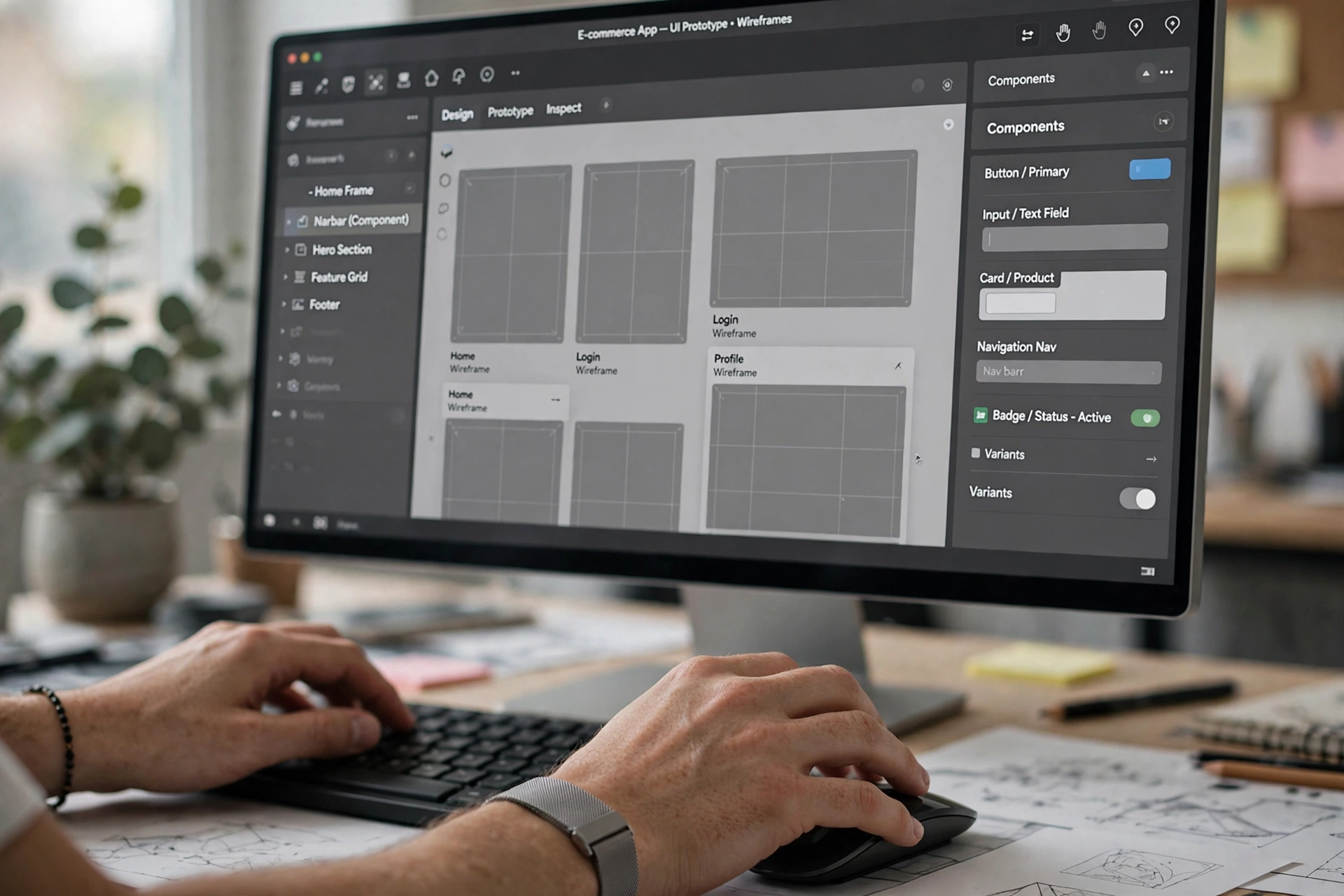
11. Uizard — Best for Turning Sketches into Wireframes
What it does: Uizard turns hand-drawn sketches or screenshots into editable wireframes, and generates UI screens from text descriptions. It is built for the earliest stage of a project, when the idea exists on paper and needs to become something a client can react to.
How designers use it: Photographing a whiteboard sketch after a workshop and getting editable screens back, turning a competitor’s screenshot into a wireframe to study its structure, or building a first prototype for a pitch without opening Figma. It shortens the gap between a meeting and a testable idea.
Worth knowing: A free tier is available, and paid plans start from around $12 a month. The output is a starting point, not a finished design system — expect to rebuild the screens that survive in your main tool.
How to Choose the Right AI Tools for Designers
The best AI tools for designers are the ones that match your actual design jobs, not the ones with the longest feature list. Start from the work you do every week and pick one tool per job:
- Briefs and writing: A general assistant such as ChatGPT or Claude for directions, UX copy, and handoff notes.
- Concept imagery: A generator such as Midjourney for moodboards, plus Adobe Firefly when the work needs licensed, editable output.
- Interfaces and prototypes: Figma AI and Figma Make if you already work in Figma, or Google Stitch for free exploration.
- Vectors and brand assets: A tool such as Recraft when the deliverable must scale and stay editable.
- Colour: A focused tool such as Khroma for palettes and accessible pairings.
- Marketing layouts: A tool such as Canva for speed, templates, and resizing across platforms.
- Motion and video: A tool such as Runway for short clips and animated hero sections.
- Early ideas: A sketch-to-wireframe tool such as Uizard for turning a whiteboard into testable screens.
Try one tool at a time for a full week of real projects before adding another. A stack of three tools you actually use beats a stack of eleven you never open. And check each tool against your client’s contract and the licensing position first — rules differ, especially for AI-generated logos, images of real people, and undisclosed AI work, and a tool that is fine for a concept may not be allowed in a finished deliverable.
A Free Starter Stack for New Designers
If you are starting from nothing, this combination covers every design job for free and is the best way to learn what AI tools for designers can actually do for you:
- ChatGPT (free tier): Briefs, directions, UX copy, and client-facing writing.
- Claude (free tier): Design docs, research synthesis, and handoff notes.
- Google Stitch (free): Prompt-to-UI exploration and first screens.
- Khroma (free): Colour palettes and accessible pairings.
- Canva (free plan): Marketing layouts, social graphics, and presentations.
- Recraft (free tier): Vector icons and illustrations in a consistent style.
- Figma (Starter plan): 500 AI credits a month for layer cleanup, first drafts, and visual search.
That is seven tools, all free, covering writing, concepts, interfaces, colour, vectors, layouts, and prototyping. Use them for a month. Only pay for a tool when you can name the specific limit you keep hitting — the number of generations, the credits, the commercial licence — and the paid plan removes exactly that limit.
What AI Tools for Designers Cost
Most AI tools for designers have genuinely useful free tiers, and the paid plans are optional upgrades for heavy users. The figures below are snapshots from the vendors’ own pages and comparison guides as of October and November 2026, and they change often, so confirm on each official pricing page before you buy:
| Tool | Free option | Paid plan (from) |
|---|---|---|
| ChatGPT | Free tier with limits | Plus $20 a month |
| Claude | Free tier with limits | Pro $20 a month ($17 a month annual) |
| Midjourney | No free tier | Paid plans from $10 a month |
| Adobe Firefly | Limited free access | Standard $9.99 a month |
| Figma AI | Starter plan, 500 AI credits a month | Professional from around $15 a month per editor |
| Canva | Free plan | Pro around $15 a month |
| Recraft | Free tier with limits | Paid plans from around $12 a month |
| Google Stitch | Free with monthly generation caps | Free in Google Labs |
| Khroma | Free in the browser | Free |
| Runway | Free plan with limits | Paid plans from around $12 a month |
| Uizard | Free tier | Paid plans from around $12 a month |
A full paid stack of the paid tools on this list would cost well over $100 a month, which is why the free starter stack matters: most designers never need more than three or four paid tools, and only after the free limits start to bite. Pay for the tool that removes the one limit you hit every week, and leave the rest free until they earn their fee.
7 Mistakes to Avoid with AI Tools for Designers
- Publishing AI output unchecked: This is the biggest risk on this list. AI tools produce confident-looking work that can be wrong, derivative, or off-brand. Every concept still needs a human eye before it reaches a client.
- Building a logo entirely with AI: Raw AI-generated artwork cannot be protected as a trademark without substantial human modification and redrawing. A logo that cannot be owned is not a deliverable — keep AI to concepts and rebuild the winner as real vector work.
- Ignoring licensing and training data: Not every generator is trained on licensed content. Check where the training data came from and what the licence allows before generated imagery goes into commercial client work.
- Letting AI flatten your style: If a tool generates every concept, your portfolio starts to look like everyone else’s. Use AI for directions and drafts, then apply your own judgement and craft before anything ships.
- Paying before testing the free tier: Most designers never hit the free limits. Try the free plan for a month of real projects before spending anything, and only upgrade when you can name the exact limit you keep hitting.
- Collecting tools instead of a system: Eleven subscriptions and no routine is worse than three tools used every day. Pick one tool per design job and use it for a full week before adding another.
- Shipping AI work without checking the export: A raster image is not a logo, a screenshot is not a component, and a generated screen is not a design system. Check the file format, the editability, and the handoff before the work leaves your desk.
Frequently Asked Questions
What is the best AI tool for designers?
There is no single winner — it depends on the job. For concept art and moodboards, Midjourney leads. For commercially safe images inside Adobe apps, Firefly leads. For UI design and prototypes, Figma AI and Figma Make lead because they work inside the tool designers already use. For vectors and brand assets, Recraft leads. The best AI tool for designers is the one that fits your actual design routine and that you will use every week.
Are AI tools for designers free?
Most of the tools in this guide have genuinely free tiers that cover normal design work. ChatGPT, Claude, Google Stitch, Khroma, Canva, Recraft, Figma, Runway, and Uizard all offer free access. Paid plans mainly remove limits on usage, generations, credits, or commercial features. Only Midjourney has no free tier on this list, and Adobe Firefly’s free access is limited.
Can I use AI-generated images in client work?
It depends on the tool and the contract. Adobe Firefly is trained on licensed content, which is why many studios prefer it for commercial work. Figma offers AI copyright protection as an optional add-on for larger teams. But raw AI output on its own is hard to protect: a logo generated entirely by AI cannot be registered as a trademark without substantial human modification. Check the tool’s licence, your client’s contract, and the current rules before generated work goes into a deliverable.
Will AI tools replace designers?
No — they replace the repetitive work around designing, not the designing itself. AI can generate options, resize, remove backgrounds, and draft screens, but it cannot decide what a client actually needs, develop a style clients recognise, or build the trust that makes someone hire you again. Designers who use AI tools for designers well ship more work and spend more of their time on ideas, not less. In one survey of UK creatives, 81% of designers said AI dulls creativity — which is exactly why the human judgement still matters: the tool proposes, the designer decides.
Which AI tool is best for UI design?
Figma AI and Figma Make are the strongest choice for most product and UI designers, because they work inside Figma where the design system, components, and handoff already live. Google Stitch is the best free alternative for exploring directions before committing to Figma, and Uizard is the fastest route from a hand-drawn sketch to a wireframe. Pick by the job: Figma for production UI, Stitch for free exploration, Uizard for sketches.
Conclusion
AI tools for designers work best as a production team, not as a replacement designer. Used well, they brainstorm, draft screens, generate concepts, build palettes, resize layouts, and prototype — and they give you back hours every week that you can spend on the ideas, the taste, and the craft that make your work yours. The eleven tools in this guide cover every design job from brief to handoff, and the free starter stack costs nothing at all, so there is no reason to pay before you know which tools fit your routine.
Start small. Pick one tool for your hardest job, use it for a week of real projects, and judge it on whether you ship more — and better — work afterwards, not on how fast it produced a draft. Check the licensing and your client’s rules, verify every export before it leaves your desk, and keep the thinking yours. The designers who get the most from AI tools for designers are not the ones who use the most tools. They are the ones who use a few tools deliberately, every day, and still do the designing themselves.