

Most working weeks are eaten alive by small, repetitive jobs. The inbox that refills itself, the meeting notes that need turning into tasks, the same report rebuilt every Friday, the data copied from one system into another. None of it is difficult, but together it steals hours that should go to the work only a person can do.
Learning how to automate tasks with AI changes that maths. Instead of doing the repetitive steps yourself, you learn how to automate tasks with AI and teach software to do them: an AI model reads, sorts, drafts or decides, and a workflow tool moves the result where it needs to go. The combination is powerful because each half covers the other’s weakness — the workflow tool is reliable but rigid, while the AI is flexible but needs guardrails.
This guide shows you how to automate tasks with AI from scratch, in seven practical steps, with no coding required. You will learn how to pick the right tasks, choose tools that fit your situation, build your first working automation, and keep a human in charge of the decisions that matter.
What Does It Mean to Automate Tasks with AI?
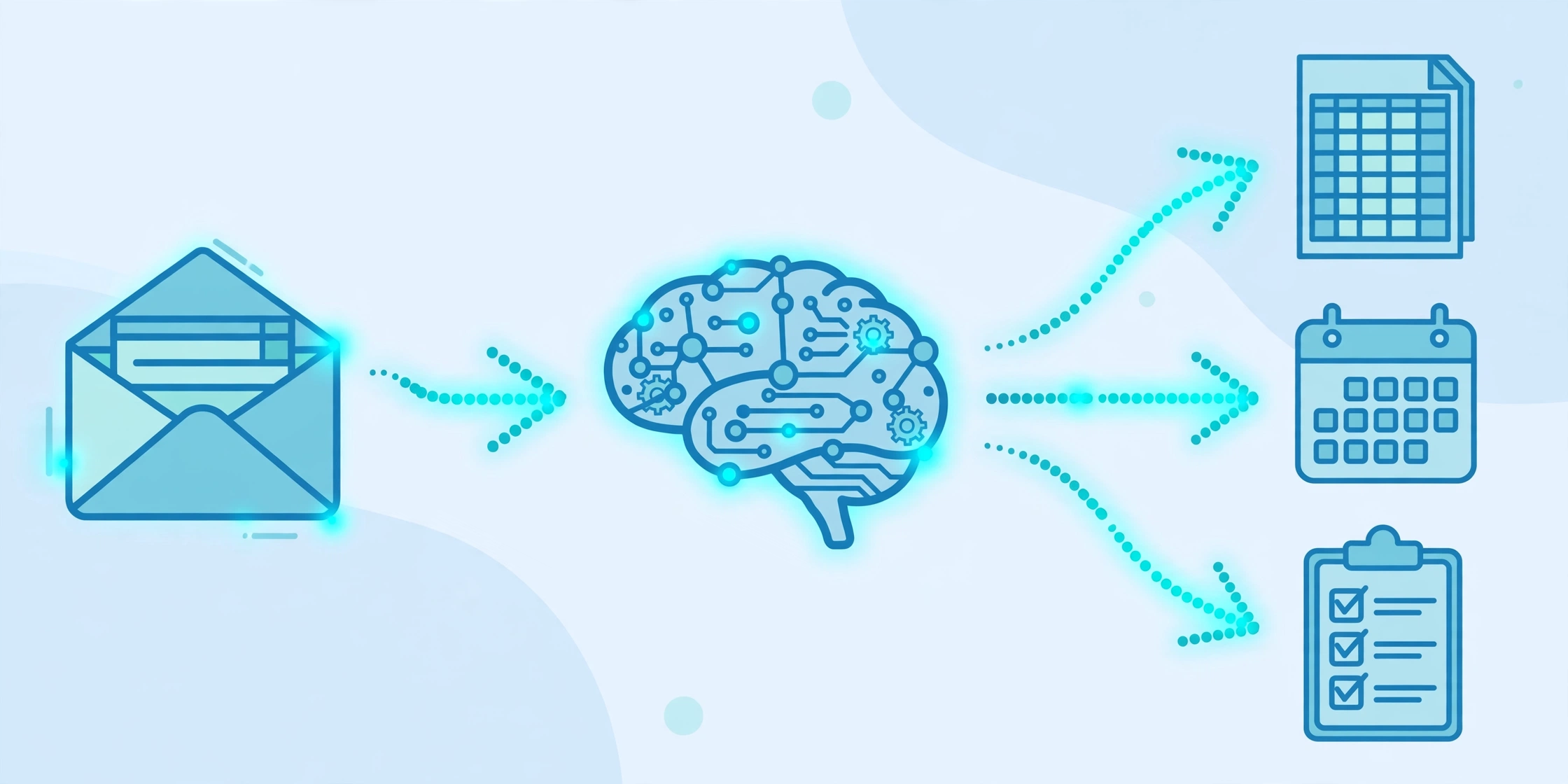
To automate tasks with AI means connecting three things: a trigger that starts the work, an AI step that does the thinking, and an action that delivers the result. A new email arrives, for example. The AI reads it, works out what it is about and how urgent it is, drafts a reply, and files it in the right place. You check the draft and press send — or, once you trust the setup, the workflow sends routine replies on its own.
The trigger: the event that starts the automation. It could be a new email, a form submission, a file landing in a folder, a calendar event, or simply a time of day. The trigger is what turns a one-off prompt into a system that runs without you remembering to start it.
The AI step: the part where intelligence enters the picture. A large language model reads unstructured input — the words in an email, the text of a document, the transcript of a meeting — and produces something useful: a summary, a classification, an extraction, a draft, or a decision. Without this step, you have traditional automation, which can only follow fixed rules.
The action: what happens with the AI’s output. The draft goes to your inbox, the extracted figures land in a spreadsheet, the task appears in your project board, or a message posts to your team’s chat channel. The action closes the loop so the work is finished, not just started.
The difference from old-style automation matters. A traditional rule can sort emails from a known sender into a folder, but it cannot read a new customer’s message and decide whether it is a complaint, a question, or a sales enquiry. That judgement call is exactly where AI earns its place. When you automate tasks with AI, you are handing over the reading and deciding, not just the moving and copying, and that is the reason knowing how to automate tasks with AI pays off so quickly.
How to Automate Tasks with AI in 7 Steps
The seven steps below work whether you are automating one small job for yourself or setting up workflows for a whole team. Do them in order, and resist the urge to automate everything at once. One working automation that saves an hour a week beats ten half-built ones that save nothing.
Step 1: Find the Tasks Worth Automating
Start with a one-week audit. Keep a simple note of every task you repeat, how long it takes, and how often it happens. At the end of the week, look for the jobs that score well on four tests.
- High frequency: you do it at least three times a week, so the saving compounds.
- Predictable structure: the steps follow a recognisable pattern, even when the details change.
- Language-heavy: the work involves reading, writing, sorting or summarising text, which is where AI is strongest.
- Low stakes for a first draft: an output that is 90 per cent right is still useful, because a person checks it before it goes out.
When you first learn how to automate tasks with AI, good first candidates are inbox triage, meeting notes, weekly status updates, data extraction from documents, and social media scheduling. Poor first candidates are anything involving sensitive personal data, legal commitments, or money moving between accounts. Save those for later, when you have a tested workflow and a review step you trust.
Step 2: Map the Task Before You Touch a Tool
Write down how the task works today, step by step, as if you were explaining it to a new colleague. Where does the input come from? What decision do you make at each point? What does the finished output look like, and where does it go? This map is the most valuable document in the whole project, because every automation you build is just this map turned into software.
Mapping first also stops the most common beginner error: automating a bad process. If the manual version has three unnecessary approval steps and a spreadsheet nobody reads, automating it just produces the same waste faster. Fix the process on paper, then automate the fixed version.
Step 3: Choose Your Automation Level
Not every task needs a full workflow. There are four levels, and the right move is to start at the lowest level that does the job.
- Level 1 — AI-assisted: you trigger it, AI helps. A saved prompt, a custom assistant loaded with your templates, or a chatbot that drafts from documents you upload. No workflow tool needed, and you stay in control of every send.
- Level 2 — Rule-based automation with an AI step: a workflow tool handles the trigger and the movement of data, and one step calls an AI model. Example: a new support email arrives, AI classifies the topic and urgency, and a ticket is created in the right queue with a summary attached.
- Level 3 — Multi-step AI workflow with human checkpoints: several AI steps in sequence, with a person approving the output at key points. Example: a meeting recording is transcribed, AI extracts the action items, drafts the follow-up email, and waits for your approval before sending.
- Level 4 — AI agent: the system plans its own steps, uses tools, and adapts as it goes. Example: an agent that researches a new lead, scores it, enriches it with company details, and logs everything in the CRM. Start here only after levels 1 to 3 are working reliably.
Most people who learn how to automate tasks with AI never need level 4. Levels 1 and 2 cover the vast majority of everyday time savings, and they fail far more gracefully.
Step 4: Pick the Right Tools for Your Situation
When you learn how to automate tasks with AI, match the tool to your situation, not to the hype. The main workflow platforms all do the same core job — trigger, AI step, action — but they differ in ease of use, cost, and control. Zapier is the easiest starting point, with thousands of app connections and AI steps built in. Make offers more visual control over complex, branching workflows at a lower cost, with a slightly steeper learning curve. n8n suits technical users who want self-hosting and strong AI agent features. Microsoft Power Automate is the natural choice inside a Microsoft 365 organisation, with deep Outlook, Teams, SharePoint and Excel integration.
For a deeper explanation of what each component does, read Zapier’s complete guide to AI automation.
For the AI step itself, you will usually use a large language model such as ChatGPT, Claude or Gemini, either directly inside the workflow tool or through its built-in AI actions. Some workflow tools now include their own AI steps, so you may not need a separate AI subscription at all. Check the vendor’s pricing page before committing, because free-tier limits on runs and AI calls change often.
Step 5: Build Your First Workflow
Build small and build it manually first. Take the map from step 2 and automate one step at a time, testing each one before adding the next. A worked example makes this concrete: turning inbound emails into organised tasks with draft replies.
- Trigger: a new email arrives in your inbox.
- AI step 1 — classify and extract: the model reads the email and returns the category, the urgency, the sender’s request, and any dates mentioned.
- Router: urgent client mail goes to the top of your task list, newsletters are filed away, and spam is archived.
- AI step 2 — draft reply: for routine enquiries, the model drafts a reply in your tone, using your FAQ or product notes as its source material.
- Human review: the draft waits for your approval before anything is sent.
Build it, run it on ten real emails, and check every result. If the AI is wrong more than twice in ten, the prompt or the input data needs work — not the tool. Fix the prompt, run ten more, and only then let it handle the routine cases unsupervised.
Step 6: Measure What It Actually Saves
An automation that feels clever but saves nothing is a hobby, not a system — and the whole point of learning how to automate tasks with AI is the time it returns. Before you switch a workflow on, write down how long the manual task takes and how often it happens. After two weeks, compare. Time saved is the headline number, but watch two others as well: the error rate, meaning how often the AI output needed correcting, and the exception rate, meaning how often the workflow hit a case it could not handle and handed it back to you.
If the time saved is real and the error rate is low, scale the workflow to more cases or a second task. If the error rate is high, tighten the prompt, narrow the cases it handles, or add a review step. A workflow that quietly makes mistakes is worse than no workflow at all, because the mistakes reach people before you notice them.
Step 7: Maintain, Review and Improve
That is normal when you learn how to automate tasks with AI: AI models change, apps update their interfaces, and your own processes evolve. A workflow that worked in January can break in June because an app renamed a field or a model started phrasing its output differently. Put a monthly fifteen-minute review in your calendar: check the run logs, read a sample of recent outputs, and fix anything that has drifted.
Keep a simple log of what each workflow does, which apps it touches, and what to do when it fails. When a workflow breaks at the worst moment — and one eventually will — that log is the difference between a five-minute fix and a lost afternoon. Treat your automations like any other system you rely on: documented, monitored, and reviewed on a schedule.
10 Everyday Tasks You Can Automate with AI Right Now
If you are wondering how to automate tasks with AI in your own week, these ten are proven first automations. Each one follows the same trigger, AI step, action pattern, and each one can be built at level 1 or 2.
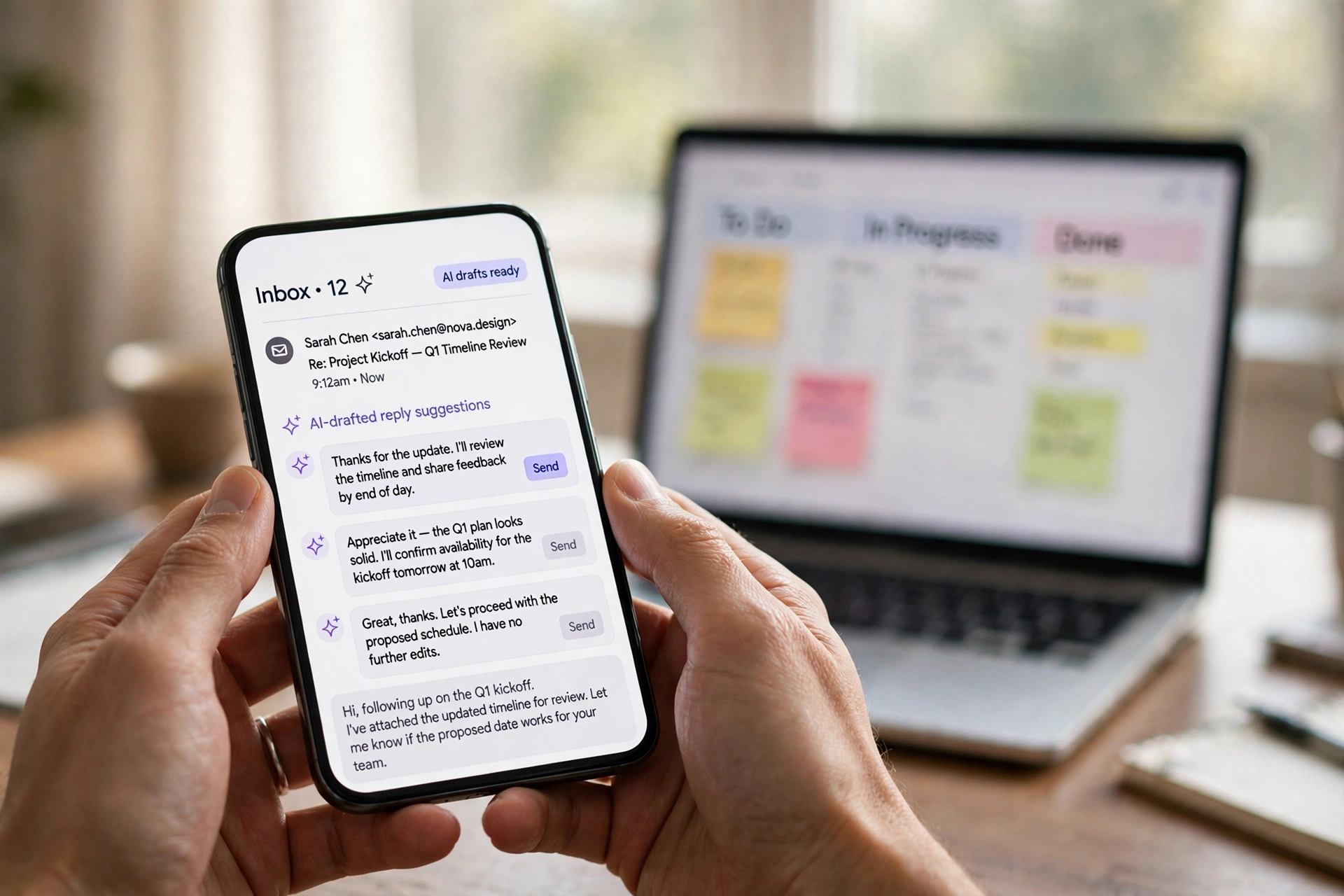
- Inbox triage: AI reads incoming mail, labels it by topic and urgency, and drafts replies for the routine ones.
- Meeting notes: a recording or transcript becomes a summary with owners and deadlines, posted to your team channel.
- Weekly reports: figures pulled from your tools are turned into a plain-language status update every Friday.
- Data extraction: invoices, receipts and contracts have their key figures pulled into a spreadsheet automatically.
- Social media scheduling: a draft post is written from your notes, formatted for each platform, and queued for review.
- Lead enrichment: a new enquiry is researched, scored, and logged in the CRM with company details attached.
- Customer support drafts: common questions get accurate draft answers drawn from your help documents.
- Content repurposing: a long article becomes a short summary, a newsletter section, and three social posts.
- Calendar management: meeting requests are checked against your availability and confirmed with a personalised reply.
- File organisation: documents dropped in a folder are read, renamed by content, and filed in the right place.
Pick the one that eats the most of your week, build it properly, and only then move to the next. The compounding effect of ten small automations is enormous — but only if each one actually works.
Also Read: AI Tools for Researchers
Choosing the Right Tools When You Automate Tasks with AI
The table below compares the main options at a glance. Prices and free-tier limits change often, so treat this as a starting point and check the vendor’s pricing page before you commit.
| Tool | Best for | Notes |
|---|---|---|
| Zapier | Beginners and non-technical users | Easiest to start; thousands of app connections; AI steps and agents built in; costs rise with task volume |
| Make | Visual, complex workflows at lower cost | More control over branching and data flow; steeper learning curve than Zapier; good value at scale |
| n8n | Technical users and AI agents | Free if self-hosted; strongest AI agent features; needs technical setup |
| Microsoft Power Automate | Microsoft 365 organisations | Deep Outlook, Teams, SharePoint and Excel integration; includes desktop automation |
| ChatGPT, Claude or Gemini | The AI step itself | Drafting, summarising, classifying and extracting; use inside a workflow tool or on its own |
A practical rule: if you use Google Workspace, start with Zapier or Make. If your organisation runs on Microsoft 365, start with Power Automate. If you are technical and want full control over your data, look at n8n. The tool matters far less than the map from step 2 — a clear process works on any platform, and a muddled one fails on all of them.
5 Mistakes to Avoid When You Automate Tasks with AI
Most people who set out to automate tasks with AI and fail do so for the same five reasons, and all five are avoidable.
- Automating too much, too soon: starting with ten workflows at once means ten things to debug. Build one, prove it, then build the next.
- Skipping the human review: letting AI send messages or move money without a checkpoint is how small errors become public ones. Keep a person in the loop until the error rate is proven low.
- Vague prompts: an AI step with a loose instruction produces loose output. Tell the model exactly what to return, in what format, and what to do when it is unsure.
- No fallback for failures: every workflow needs a plan for the day the AI is down, an app changes, or the input is unreadable. A failed run should notify you, not fail silently.
- Automating a broken process: if the manual version is slow because the process itself is muddled, automation only produces the muddle faster. Fix the process first, as step 2 describes.
Keeping Humans in the Loop: Automating Safely
Automation works best as a partnership, not a replacement. The AI does the reading, sorting and drafting; the person does the judging, approving and handling of exceptions. That division keeps quality high and risk low, and it is also what makes colleagues trust the system instead of fearing it.
Be careful with what data your workflows can see. Avoid sending sensitive personal information, passwords, or financial details through AI steps unless you have checked the provider’s data policies and your own organisation’s rules. Keep an audit trail: most workflow tools keep run logs, and those logs are your evidence when something goes wrong or a decision needs explaining.
Finally, tell the people affected. If an automation drafts replies to your customers, your team should know, and your customers should never be misled into thinking a machine’s words are a person’s. Transparency costs nothing and prevents the kind of surprise that destroys trust in a new system.
Frequently Asked Questions
Can I learn how to automate tasks with AI without knowing how to code?
Yes. The workflow tools named in this guide — Zapier, Make, n8n and Microsoft Power Automate — are built for non-developers, with visual builders where you connect apps and describe steps in plain language. The AI step is usually a prompt you write, not code. Coding only becomes useful when you want a custom integration or a very specific behaviour that no existing app covers.
How much does it cost to automate tasks with AI?
You can start free. Most workflow platforms offer a free tier with a limited number of runs per month, and the AI models offer free tiers or low-cost plans of their own. A single-person setup often runs on free tiers for months. Costs grow with volume — the number of workflow runs and AI calls — so check each vendor’s pricing page and measure your usage before upgrading.
What is the easiest task to automate first?
Inbox triage is the usual recommendation for anyone learning how to automate tasks with AI, because it is high-frequency, language-heavy, and easy to test safely: the AI classifies and drafts, and you approve before anything is sent. Meeting notes are a close second. Both deliver visible time savings within the first week, which builds the confidence to automate the next task.
Will AI automation replace my job?
It replaces tasks, not jobs. The repetitive reading, sorting, copying and drafting moves to software, while the judgement, relationships and creative decisions stay with people. In practice, the people who benefit most are the ones who learn how to automate tasks with AI themselves, because they end up owning the systems their team relies on.
How do I know if an automation is working well?
If you are learning how to automate tasks with AI, measure three numbers over two weeks: time saved against the manual version, the error rate in AI outputs, and the exception rate — how often the workflow hands a case back to a person. A good automation saves real time with a low error rate. If errors are frequent, narrow the cases it handles or add a review step rather than switching it off entirely.
Conclusion
Learning how to automate tasks with AI is less about the tools and more about the method: find the repetitive work, map it properly, start at the simplest level that does the job, and keep a human approving the outputs until the system has earned your trust. The seven steps in this guide work for a freelancer automating an inbox and for a team automating a whole department, because the pattern is the same every time — trigger, AI step, action, review.
Start this week with one task from the list above, and work through the seven steps to automate tasks with AI in your own routine. Run the one-week audit, map the process on a single page, and build your first workflow in an afternoon. The hours you save will not come back as one dramatic windfall; they will arrive quietly, a few minutes at a time, every single day — and that is exactly how a better working week is built.